


Showing posts with label Microsoft. Show all posts
Showing posts with label Microsoft. Show all posts
Friday, January 23, 2015
Tuesday, January 13, 2015
Time Zone clonflictions with Cloud Services .. How to avoid .
There is problems when you are developing applications which based on cloud services. That is , time of your service (servers ) are different than the time that your application. If you are using time stamp based data pulling from the cloud service you are in big trouble.
Here if two basic solutions that you can use in those scenarios
1. Use UTC (absolute) Time (highly recommended)
2. Change time zone of the server according to the requirement
Use absolute time you can just do with simple DateTime object.
in C# simply like this
Change Time zone of the Server ( Instances of cloud service )
This is the Task that you cannot find lot of documentation
If you follow following steps You can easily change server time zone ( In azure (cloud) it will randomly create and no one can predict that which instance of the server will run entire service life cycle *Its never happens with cloud) in every running instance once it starting
1. Create batch (*.bat) file with flowing command
Here is time zone reference
2. Add it in to the cloud service ( Not to the cloud service project )
*Add it to project which identifies as role (web, worker) by cloud project . In following example You need to add batch file into WebRole1 project
3. Then R-Click on the batch file and select properties from visual studio . In properties under the Advanced change Copy To Output Directory property in to copy always.

4. Then go to the Cloud project and open the ServiceDefinition.csdf file

5. Under WebRole Tag add Start up task as follow .
Now it is done ... You free to go with your cloud service
Enjoy
Here if two basic solutions that you can use in those scenarios
1. Use UTC (absolute) Time (highly recommended)
2. Change time zone of the server according to the requirement
Use absolute time you can just do with simple DateTime object.
in C# simply like this
DateTime.UtcNow
Change Time zone of the Server ( Instances of cloud service )
This is the Task that you cannot find lot of documentation
If you follow following steps You can easily change server time zone ( In azure (cloud) it will randomly create and no one can predict that which instance of the server will run entire service life cycle *Its never happens with cloud) in every running instance once it starting
1. Create batch (*.bat) file with flowing command
tzutil /s "Sri Lanka Standard Time"
Here is time zone reference
| Index | Name of Time Zone | Time |
| 000 | Dateline Standard Time | (GMT-12:00) International Date Line West |
| 001 | Samoa Standard Time | (GMT-11:00) Midway Island, Samoa |
| 002 | Hawaiian Standard Time | (GMT-10:00) Hawaii |
| 003 | Alaskan Standard Time | (GMT-09:00) Alaska |
| 004 | Pacific Standard Time | (GMT-08:00) Pacific Time (US and Canada); Tijuana |
| 010 | Mountain Standard Time | (GMT-07:00) Mountain Time (US and Canada) |
| 013 | Mexico Standard Time 2 | (GMT-07:00) Chihuahua, La Paz, Mazatlan |
| 015 | U.S. Mountain Standard Time | (GMT-07:00) Arizona |
| 020 | Central Standard Time | (GMT-06:00) Central Time (US and Canada |
| 025 | Canada Central Standard Time | (GMT-06:00) Saskatchewan |
| 030 | Mexico Standard Time | (GMT-06:00) Guadalajara, Mexico City, Monterrey |
| 033 | Central America Standard Time | (GMT-06:00) Central America |
| 035 | Eastern Standard Time | (GMT-05:00) Eastern Time (US and Canada) |
| 040 | U.S. Eastern Standard Time | (GMT-05:00) Indiana (East) |
| 045 | S.A. Pacific Standard Time | (GMT-05:00) Bogota, Lima, Quito |
| 050 | Atlantic Standard Time | (GMT-04:00) Atlantic Time (Canada) |
| 055 | S.A. Western Standard Time | (GMT-04:00) Caracas, La Paz |
| 056 | Pacific S.A. Standard Time | (GMT-04:00) Santiago |
| 060 | Newfoundland and Labrador Standard Time | (GMT-03:30) Newfoundland and Labrador |
| 065 | E. South America Standard Time | (GMT-03:00) Brasilia |
| 070 | S.A. Eastern Standard Time | (GMT-03:00) Buenos Aires, Georgetown |
| 073 | Greenland Standard Time | (GMT-03:00) Greenland |
| 075 | Mid-Atlantic Standard Time | (GMT-02:00) Mid-Atlantic |
| 080 | Azores Standard Time | (GMT-01:00) Azores |
| 083 | Cape Verde Standard Time | (GMT-01:00) Cape Verde Islands |
| 085 | GMT Standard Time | (GMT) Greenwich Mean Time: Dublin, Edinburgh, Lisbon, London |
| 090 | Greenwich Standard Time | (GMT) Casablanca, Monrovia |
| 095 | Central Europe Standard Time | (GMT+01:00) Belgrade, Bratislava, Budapest, Ljubljana, Prague |
| 100 | Central European Standard Time | (GMT+01:00) Sarajevo, Skopje, Warsaw, Zagreb |
| 105 | Romance Standard Time | (GMT+01:00) Brussels, Copenhagen, Madrid, Paris |
| 110 | W. Europe Standard Time | (GMT+01:00) Amsterdam, Berlin, Bern, Rome, Stockholm, Vienna |
| 113 | W. Central Africa Standard Time | (GMT+01:00) West Central Africa |
| 115 | E. Europe Standard Time | (GMT+02:00) Bucharest |
| 120 | Egypt Standard Time | (GMT+02:00) Cairo |
| 125 | FLE Standard Time | (GMT+02:00) Helsinki, Kiev, Riga, Sofia, Tallinn, Vilnius |
| 130 | GTB Standard Time | (GMT+02:00) Athens, Istanbul, Minsk |
| 135 | Israel Standard Time | (GMT+02:00) Jerusalem |
| 140 | South Africa Standard Time | (GMT+02:00) Harare, Pretoria |
| 145 | Russian Standard Time | (GMT+03:00) Moscow, St. Petersburg, Volgograd |
| 150 | Arab Standard Time | (GMT+03:00) Kuwait, Riyadh |
| 155 | E. Africa Standard Time | (GMT+03:00) Nairobi |
| 158 | Arabic Standard Time | (GMT+03:00) Baghdad |
| 160 | Iran Standard Time | (GMT+03:30) Tehran |
| 165 | Arabian Standard Time | (GMT+04:00) Abu Dhabi, Muscat |
| 170 | Caucasus Standard Time | (GMT+04:00) Baku, Tbilisi, Yerevan |
| 175 | Transitional Islamic State of Afghanistan Standard Time | (GMT+04:30) Kabul |
| 180 | Ekaterinburg Standard Time | (GMT+05:00) Ekaterinburg |
| 185 | West Asia Standard Time | (GMT+05:00) Islamabad, Karachi, Tashkent |
| 190 | India Standard Time | (GMT+05:30) Chennai, Kolkata, Mumbai, New Delhi |
| 193 | Nepal Standard Time | (GMT+05:45) Kathmandu |
| 195 | Central Asia Standard Time | (GMT+06:00) Astana, Dhaka |
| 200 | Sri Lanka Standard Time | (GMT+06:00) Sri Jayawardenepura |
| 201 | N. Central Asia Standard Time | (GMT+06:00) Almaty, Novosibirsk |
| 203 | Myanmar Standard Time | (GMT+06:30) Yangon Rangoon |
| 205 | S.E. Asia Standard Time | (GMT+07:00) Bangkok, Hanoi, Jakarta |
| 207 | North Asia Standard Time | (GMT+07:00) Krasnoyarsk |
| 210 | China Standard Time | (GMT+08:00) Beijing, Chongqing, Hong Kong SAR, Urumqi |
| 215 | Singapore Standard Time | (GMT+08:00) Kuala Lumpur, Singapore |
| 220 | Taipei Standard Time | (GMT+08:00) Taipei |
| 225 | W. Australia Standard Time | (GMT+08:00) Perth |
| 227 | North Asia East Standard Time | (GMT+08:00) Irkutsk, Ulaanbaatar |
| 230 | Korea Standard Time | (GMT+09:00) Seoul |
| 235 | Tokyo Standard Time | (GMT+09:00) Osaka, Sapporo, Tokyo |
| 240 | Yakutsk Standard Time | (GMT+09:00) Yakutsk |
| 245 | A.U.S. Central Standard Time | (GMT+09:30) Darwin |
| 250 | Cen. Australia Standard Time | (GMT+09:30) Adelaide |
| 255 | A.U.S. Eastern Standard Time | (GMT+10:00) Canberra, Melbourne, Sydney |
| 260 | E. Australia Standard Time | (GMT+10:00) Brisbane |
| 265 | Tasmania Standard Time | (GMT+10:00) Hobart |
| 270 | Vladivostok Standard Time | (GMT+10:00) Vladivostok |
| 275 | West Pacific Standard Time | (GMT+10:00) Guam, Port Moresby |
| 280 | Central Pacific Standard Time | (GMT+11:00) Magadan, Solomon Islands, New Caledonia |
| 285 | Fiji Islands Standard Time | (GMT+12:00) Fiji Islands, Kamchatka, Marshall Islands |
| 290 | New Zealand Standard Time | (GMT+12:00) Auckland, Wellington |
| 300 | Tonga Standard Time | (GMT+13:00) Nuku'alofa |
2. Add it in to the cloud service ( Not to the cloud service project )
*Add it to project which identifies as role (web, worker) by cloud project . In following example You need to add batch file into WebRole1 project

3. Then R-Click on the batch file and select properties from visual studio . In properties under the Advanced change Copy To Output Directory property in to copy always.
4. Then go to the Cloud project and open the ServiceDefinition.csdf file
5. Under WebRole Tag add Start up task as follow .
 <WebRole name="*****" vmsize="Small">
    <Startup>
      <Task commandLine="NameOfBatchFile.bat" executionContext="elevated" taskType="simple"/>
    </Startup>
     <Sites>
      <Site name="Web">
        <Bindings>
          <Binding name="Endpoint1" endpointName="Endpoint1" />
        </Bindings>
      </Site>
    </Sites>
    <Endpoints>
      <InputEndpoint name="Endpoint1" protocol="http" port="80" />
    </Endpoints>
  </WebRole>
Now it is done ... You free to go with your cloud service
Enjoy
Saturday, November 15, 2014
Microsoft Visual Studio 2015 for every developer in every platform
Microsoft release the ultimate developer tool next version for preview. Now you can download it from Microsoft Visual Studio downloads . It is designed for support n every developer platform.
 And Microsoft enables the access to developer platform for developers as open source project It is one of favorite thing to my self. hopefully it will rapidly improve the new feature additions to the visual studio.
in 12 Nov 2014 Microsoft announced their .NET 2015 version as well with Visual Studio 2015. All the core stacks of those platforms are now open source. Here is some summery form the MSDN release notes
 With Visual studio 2015 developers can increase their focus on targeting the mobile
device platform spanning iOS, Android and Windows, the need for
cross-platform mobile development solutions has never been greater.
With Visual studio 2015 developers can increase their focus on targeting the mobile
device platform spanning iOS, Android and Windows, the need for
cross-platform mobile development solutions has never been greater.
On top of great tools for building Universal Windows Applications, Visual Studio 2015 offers the most complete cross-platform mobile application development environment, with great solutions for C#, C++ and HTML/JavaScript development targeting iOS, Android, Windows and more.
Additionally It enables new rich emulators for android development that mostly smiler as windows Store app Emulators. It is very rich with Geo sensing , gestures etc. Now you don't need to vote on usual android bullshit emulator any more.
And Visual studio supports Apache Cordova and it enables to developers authoring, debugging, analyzing, packaging, and deploying HTML/ Javascript applications with Cordova in visual studio
Download , Enjoy and remember Contribute To Visual Studio
in 12 Nov 2014 Microsoft announced their .NET 2015 version as well with Visual Studio 2015. All the core stacks of those platforms are now open source. Here is some summery form the MSDN release notes
- Over the coming months, we will be open sourcing the full server-side .NET Core stack, from ASP.NET 5 down to the Core Runtime and Framework, and the open source .NET will be expanded to run on Linux and Mac OS X in addition to Windows.
- A preview of the next generation of our tools is available today with Visual Studio 2015 Preview and .NET 2015 Preview.
Together, these bring industry-leading cross-platform mobile
development tools, deep support for cloud development, and great
productivity improvements across the breadth of the developer
experience.
- Visual Studio Online is expanding its DevOps portfolio with the new Visual Studio Online Release Management service and Visual Studio Cloud Deployment Projects.
On top of great tools for building Universal Windows Applications, Visual Studio 2015 offers the most complete cross-platform mobile application development environment, with great solutions for C#, C++ and HTML/JavaScript development targeting iOS, Android, Windows and more.
Additionally It enables new rich emulators for android development that mostly smiler as windows Store app Emulators. It is very rich with Geo sensing , gestures etc. Now you don't need to vote on usual android bullshit emulator any more.
And Visual studio supports Apache Cordova and it enables to developers authoring, debugging, analyzing, packaging, and deploying HTML/ Javascript applications with Cordova in visual studio
Download , Enjoy and remember Contribute To Visual Studio
Sunday, August 24, 2014
Back-end operations with Cloud Service (Worker Roles)
With my previous post about Creating Cloud Service I mentioned two Roles in Azure.
1. Web Role
2. Worker Role
With this Post we will working with Worker Role . I'm using the same code that I use in Creating Cloud Service post
What is Worker Role ??
Worker role is the component that doing background operations in Azure web service. If you need to implement background service such as background listener with your cloud service this is the component for you.
With physically Worker role is the Virtual machine which running the Server OS (Windows Server 2012 R2) without configuring IIS.( check the Web Role definition in Creating Cloud Service ).
Actually both of the Web Role and Worker Roles are derived from RoleEntryPoint Base class.
According to the OOP principles, yes Web Role can do the same Task that Worker Role can do. ( I hope to make discussion about it with later post ). We just give the chance to handle Web related tasks to web role and use worker role to handle non web based tasks. Because Web role may be over loaded when it try to handle all within it. Then Web role is free to handle more web based requests with more speed.
Lets Code ,
1. Open the code in visual studio and check it is working (Creating Cloud Service). Then go to the solution explorer
2. On the AzureServiceDemo -> Roles -> R - click -> New Worker Role Project

Then Select Worker Role and give name.. I'm giving PrabathslWorkerRole as name

After add the worker role you can see that it will add Worker Role project to your solution ans that project contains only one class called WorkerRole.cs
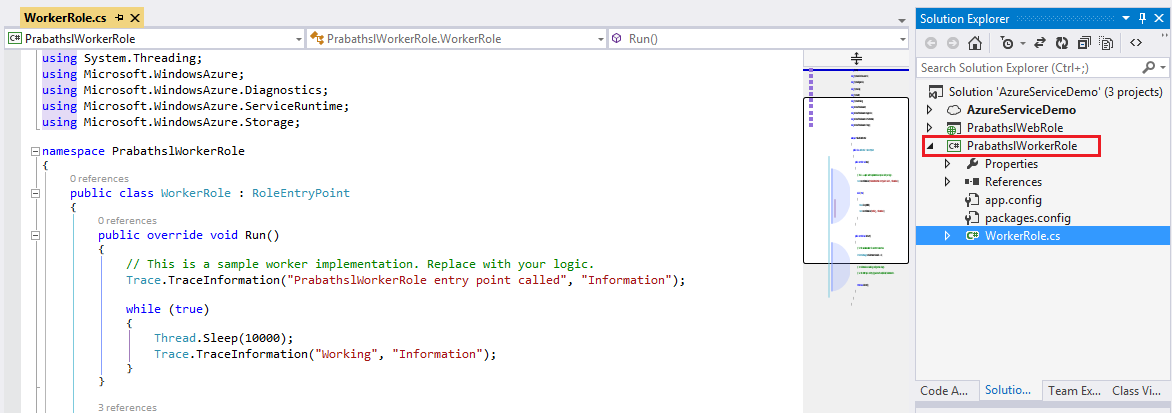
I'll add that class here for explanation
Simply public override bool OnStart() method is called when Role Started then it called public override void Run() Method. Run method should contain what we need to do in background. In here I'm going to configure HTTP listener.It take some inputs and generate output. If it needed to do repeatedly you need to add it inside forever while (true) loop
Also web role can forward jobs to the Worker role and Worker Role can also get inputs directly by it self. For that we can also insert our WCF service i worker role as well .
Replace the Run() with following code to listen port=4488 with HTTP protocol ...
This is local for the Azure VM.
Currently our VM's are haven't any external access.To allow access to the worker role we need change some configurations.
That called input end point. Lets define input endpoints. it allows traffic to go through our VM
3. Goto AzureServiceDemo Solution and Roles then double click on PrabathslWorkerRole
4. Click on Endpoints -> Add Endpoint button and add endpoint. I named it as prabathslEndpoint

External clients use this port to send traffic to service using public port
actually they send traffic through this port . Here is how people send traffic http://mysitedomain:4080/
Azure load balancer send the traffic (re route the traffic to Worker Role) through the private port to the Virtual Machine that run the worker role (4488)
**You can use any port as you wish
Now we are done and run it ..
Here is what i get when Listen to localhost
(http://127.0.0.1:4080/) We need to listen public port


Full Code In Media Fire
http://bit.ly/worker_role
1. Web Role
2. Worker Role
With this Post we will working with Worker Role . I'm using the same code that I use in Creating Cloud Service post
What is Worker Role ??
Worker role is the component that doing background operations in Azure web service. If you need to implement background service such as background listener with your cloud service this is the component for you.
With physically Worker role is the Virtual machine which running the Server OS (Windows Server 2012 R2) without configuring IIS.( check the Web Role definition in Creating Cloud Service ).
Actually both of the Web Role and Worker Roles are derived from RoleEntryPoint Base class.
According to the OOP principles, yes Web Role can do the same Task that Worker Role can do. ( I hope to make discussion about it with later post ). We just give the chance to handle Web related tasks to web role and use worker role to handle non web based tasks. Because Web role may be over loaded when it try to handle all within it. Then Web role is free to handle more web based requests with more speed.
Lets Code ,
1. Open the code in visual studio and check it is working (Creating Cloud Service). Then go to the solution explorer
2. On the AzureServiceDemo -> Roles -> R - click -> New Worker Role Project
Then Select Worker Role and give name.. I'm giving PrabathslWorkerRole as name
After add the worker role you can see that it will add Worker Role project to your solution ans that project contains only one class called WorkerRole.cs
I'll add that class here for explanation
using System;using System.Collections.Generic;using System.Diagnostics;using System.Linq;using System.Net;using System.Threading;using Microsoft.WindowsAzure;using Microsoft.WindowsAzure.Diagnostics;using Microsoft.WindowsAzure.ServiceRuntime;using Microsoft.WindowsAzure.Storage;namespace PrabathslWorkerRole{ public class WorkerRole : RoleEntryPoint { public override void Run() { // This is a sample worker implementation. Replace with your logic. Trace.TraceInformation("PrabathslWorkerRole entry point called", "Information"); while (true) { Thread.Sleep(10000); Trace.TraceInformation("Working", "Information"); } } public override bool OnStart() { // Set the maximum number of concurrent connections ServicePointManager.DefaultConnectionLimit = 12; // For information on handling configuration changes // see the MSDN topic at http://go.microsoft.com/fwlink/?LinkId=166357. return base.OnStart(); } }}Simply public override bool OnStart() method is called when Role Started then it called public override void Run() Method. Run method should contain what we need to do in background. In here I'm going to configure HTTP listener.It take some inputs and generate output. If it needed to do repeatedly you need to add it inside forever while (true) loop
Also web role can forward jobs to the Worker role and Worker Role can also get inputs directly by it self. For that we can also insert our WCF service i worker role as well .
Replace the Run() with following code to listen port=4488 with HTTP protocol ...
public override void Run() { HttpListener listner = new HttpListener(); //This will ping to Http://myserviceurl:4488 port listner.Prefixes.Add("http://+:4488/"); listner.Start(); //Set the response to transformable format string responseMessage = "<html><title>Response from Worker</title><body><h1>Prabathsl.blogspot.com</h1></body></html>"; byte[] buffer = Encoding.UTF8.GetBytes(responseMessage); while (true) { HttpListenerContext context = listner.GetContext(); //then set the response HttpListenerResponse response = context.Response; response.ContentLength64 = buffer.Length; Stream output = response.OutputStream; //write output stream output.WriteAsync(buffer, 0, buffer.Length); output.Close(); } }This is local for the Azure VM.
Currently our VM's are haven't any external access.To allow access to the worker role we need change some configurations.
That called input end point. Lets define input endpoints. it allows traffic to go through our VM
3. Goto AzureServiceDemo Solution and Roles then double click on PrabathslWorkerRole
4. Click on Endpoints -> Add Endpoint button and add endpoint. I named it as prabathslEndpoint
External clients use this port to send traffic to service using public port
actually they send traffic through this port . Here is how people send traffic http://mysitedomain:4080/
Azure load balancer send the traffic (re route the traffic to Worker Role) through the private port to the Virtual Machine that run the worker role (4488)
**You can use any port as you wish
Now we are done and run it ..
Here is what i get when Listen to localhost
(http://127.0.0.1:4080/) We need to listen public port
Full Code In Media Fire
http://bit.ly/worker_role
Monday, August 11, 2014
Creating Cloud Service
Today we are going to create windows Azure cloud service. Not like my previous post about creating Azure mobile service today i'm going to totally working with visual studio and not going to the azure portal
before start ,
Unlike most of other cloud service providers azure provide SDK's for developers not only for .NET it supports java, Node.js , php, Python and Ruby . more will come later . Today im demonstrate codes with .NET SDK.
If you are installed and ready lets begin our task
First open Server explorer and if you configured your cloud SDK correctly it will display Windows Azure menu. click on it and login to your Azure subscription
1. Open Visual Studio -> New -> Cloud Service and give name to solution

2. Then Visual Studio will prompt you New Windows Azure Cloud Service Prompt.
Today I'm going to host website as a cloud service therefore I need to add WebRole (ASP .NET Web role ) to my cloud service.
I select it and then rename it using edit button in the Azure cloud service solution list as PrabathslWebRole

**I'll explain what is web role in azure cloud service in late in this post.
3. Then it will prompt New ASP.NET web project window it is familiar one to all ASP.NET developers. I'm selecting MVC project to work on. You can create any site as your wish.
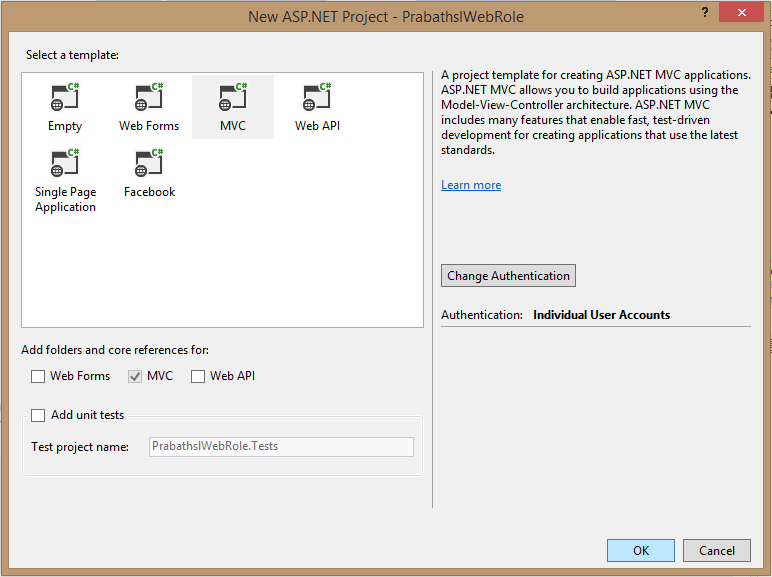
My project is now created and you can see that in solution explorer there is two separate projects in the same solution.

One is our cloud service and next one is our ASP.NET MVC project. You can working on ASP.NET project as same as you previously worked with ASP.NET. I'll explain some additional things in regarding cloud service project
If you expand Cloud service project you can see that in roles folder there is my WebRole.

What is WebRole ?
In Windows Azure it introduced concepts called Roles. There is two main roles in azure
If we working with Web Site we need IIS (Internet Information Service) within our hosted VM. Therefore Azure Web Role will contain VM that contain configured IIS wit it. If our Service not working with HTTP we don't need IIS
.Therefore It contains predefined VM without IIS it is Worker Role. (**I'll go through Worker role and its capabilities with separate post)
You can have multiple worker roles and Web roles within same Service.
If you have two worker roles within your Service it means when your application is up there is two different VM's is running on Azure fabric
let's go back to project
4. Lets run our code and see (* I made a mistake here. If i need to run application locally it need to start Azure Compute Emulator //feature with in azure SDK ad its allow to run and debus cloud applications locally// for that i need to run visual Studio as administrator)
Hopefully it is up and running..
Then R-Click on Azure Emulator and go to Compute Emulator UI

Then you can see that my AzureServiceDemo Project is running and it contains PrabathSlWebRole in VM. It has only one instance of VM.

To gain efficiency and 99.5% up time that grantees by Azure you need to have at least two instances of each VM (in this case web role)
to do that go back to the project and open PrabathSlWebRole . In select configuration and make instance count at least 2 . and you can select VM sizes for each instance according to your requirement and traffic that expecting from clients. in my demo i don't need to maintain lot more traffic and i select Small

Azure Load Balance
When we are working with two separate instance instance of VM's they have separate IP's as well. how we utilize it ?
Answer is azure do every thing for you . Azure load balancer get the external (pubic) traffic and redirect it in to available VM's automatically according to resource availble and round robin like scheduling algorithms .
to monitor that lets change our code slightly.
Go to HomeController.cs and
edit About() as follows
Then run it and see the results .. click the about and check the value with several refreshes.. isn't it amazing :)
And here Compute Emulator ,

Now it runs two instances of same PrabathSlWebRole.
With in hosted environment these VM's are represent in separate Windows Server 2012 R2 VM's.
Lets meet with another post.
before start ,
- you need to have Azure subscription
- Visual Studio ( http://www.visualstudio.com/ )
- Azure SDK (http://azure.microsoft.com/en-us/downloads/) -.NET
Unlike most of other cloud service providers azure provide SDK's for developers not only for .NET it supports java, Node.js , php, Python and Ruby . more will come later . Today im demonstrate codes with .NET SDK.
If you are installed and ready lets begin our task
First open Server explorer and if you configured your cloud SDK correctly it will display Windows Azure menu. click on it and login to your Azure subscription
1. Open Visual Studio -> New -> Cloud Service and give name to solution
2. Then Visual Studio will prompt you New Windows Azure Cloud Service Prompt.
Today I'm going to host website as a cloud service therefore I need to add WebRole (ASP .NET Web role ) to my cloud service.
I select it and then rename it using edit button in the Azure cloud service solution list as PrabathslWebRole
**I'll explain what is web role in azure cloud service in late in this post.
3. Then it will prompt New ASP.NET web project window it is familiar one to all ASP.NET developers. I'm selecting MVC project to work on. You can create any site as your wish.
My project is now created and you can see that in solution explorer there is two separate projects in the same solution.
One is our cloud service and next one is our ASP.NET MVC project. You can working on ASP.NET project as same as you previously worked with ASP.NET. I'll explain some additional things in regarding cloud service project
If you expand Cloud service project you can see that in roles folder there is my WebRole.
What is WebRole ?
In Windows Azure it introduced concepts called Roles. There is two main roles in azure
- Web Role
- Worker Role
If we working with Web Site we need IIS (Internet Information Service) within our hosted VM. Therefore Azure Web Role will contain VM that contain configured IIS wit it. If our Service not working with HTTP we don't need IIS
.Therefore It contains predefined VM without IIS it is Worker Role. (**I'll go through Worker role and its capabilities with separate post)
You can have multiple worker roles and Web roles within same Service.
If you have two worker roles within your Service it means when your application is up there is two different VM's is running on Azure fabric
let's go back to project
4. Lets run our code and see (* I made a mistake here. If i need to run application locally it need to start Azure Compute Emulator //feature with in azure SDK ad its allow to run and debus cloud applications locally// for that i need to run visual Studio as administrator)
Hopefully it is up and running..
Then R-Click on Azure Emulator and go to Compute Emulator UI
Then you can see that my AzureServiceDemo Project is running and it contains PrabathSlWebRole in VM. It has only one instance of VM.
To gain efficiency and 99.5% up time that grantees by Azure you need to have at least two instances of each VM (in this case web role)
to do that go back to the project and open PrabathSlWebRole . In select configuration and make instance count at least 2 . and you can select VM sizes for each instance according to your requirement and traffic that expecting from clients. in my demo i don't need to maintain lot more traffic and i select Small
Azure Load Balance
When we are working with two separate instance instance of VM's they have separate IP's as well. how we utilize it ?
Answer is azure do every thing for you . Azure load balancer get the external (pubic) traffic and redirect it in to available VM's automatically according to resource availble and round robin like scheduling algorithms .
to monitor that lets change our code slightly.
Go to HomeController.cs and
edit About() as follows
public ActionResult About() { //Lets add current instance Id to this message //need to reference using Microsoft.WindowsAzure.ServiceRuntime; ViewBag.Message = "current instance Id = " + RoleEnvironment.CurrentRoleInstance.Id.ToString() + " Role " + RoleEnvironment.CurrentRoleInstance.Role.ToString(); return View(); }Then run it and see the results .. click the about and check the value with several refreshes.. isn't it amazing :)
And here Compute Emulator ,
Now it runs two instances of same PrabathSlWebRole.
With in hosted environment these VM's are represent in separate Windows Server 2012 R2 VM's.
Lets meet with another post.
Tuesday, July 15, 2014
Azure Mobile Services ( Start to build)
Windows Azure cloud application provide quite amazing solutions for Mobile backed services. With Azure cloud applications allows you to store structured data (files and SQL Azure) , Authentication interrogation to Mobile applications and user updates via push notifications. Specially Azure is not only for Windows (Microsoft ) Products. It supports Window 8, Windows Phone , Android and iOS with different development platforms such as native platforms and Xamarin.
Lets build first Cloud app
1. First Log in to your Azure Portal and click on New button in left corner

2. Then from prompt Select Compute -> Mobile Service-> Create
 3. With the next prompt add URL for your Mobile service in URL field. With Database field if you have already created database for mobile application back end select it if it is not select option Create new SQL Database instance or Create Free 20MB SQL Database Option
Select your region and what kind of backed you need to have. it has .NET and Javascript backed. Choose your choise
If you plan to include Push notification with your app tick on Advanced Push Notification Check box

4. If you checked Advanced Push Notification Check box this step you find the Push Notification Settings prompt. Azure notification hub is cross platform push notification service that can simultaneously broadcast notifications across the devices.
Create namespace to notification service and name your push notification Hub


5. Then you can define the Database Settings. You can define new database name , If you already have database server select it or else create new database server and give the credentials for it as you want.
If you need to make advanced changes to the database tick on Configure Advanced Database Settings Check box.
With Advanced database settings you can limit the database capacity and define the character encoding for the data


Then our web service is up and it take few seconds to configure and make it online

Once our Service is created the screen is like this

Select the platform that you need to create app that using this service and scroll down to to GET STARTED area.
Expand the Create new App. (this depend on what you select in Choose Platform Area Select the language C# or JavaScript and download the applicattion.
Run it and enjoy your first cloud app
Lets build first Cloud app
1. First Log in to your Azure Portal and click on New button in left corner
2. Then from prompt Select Compute -> Mobile Service-> Create
Select your region and what kind of backed you need to have. it has .NET and Javascript backed. Choose your choise
If you plan to include Push notification with your app tick on Advanced Push Notification Check box
4. If you checked Advanced Push Notification Check box this step you find the Push Notification Settings prompt. Azure notification hub is cross platform push notification service that can simultaneously broadcast notifications across the devices.
Create namespace to notification service and name your push notification Hub
5. Then you can define the Database Settings. You can define new database name , If you already have database server select it or else create new database server and give the credentials for it as you want.
If you need to make advanced changes to the database tick on Configure Advanced Database Settings Check box.
With Advanced database settings you can limit the database capacity and define the character encoding for the data
Then our web service is up and it take few seconds to configure and make it online
Once our Service is created the screen is like this
Select the platform that you need to create app that using this service and scroll down to to GET STARTED area.
Expand the Create new App. (this depend on what you select in Choose Platform Area Select the language C# or JavaScript and download the applicattion.
Run it and enjoy your first cloud app
Wednesday, May 21, 2014
FOSS and Microsoft Contribution
What Is Open Source Software?
Open-source software is computer software with its source code made available and licensed with a license in which the copyrightholder provides the rights to study, change and distribute the software to anyone and for any purpose
What is free software?
Free software, software libre, or libre software is computer software that is distributed along with its source code, and is released under a software license that guarantee users the freedom to run the software for any purpose as well as to study, adapt/modify, and distribute the original software and the adapted/changed versions.
What is FOSS?
Free and open source software is software’s anyone is freely licensed to use, copy, study, and change the software in any way, and the source code is openly shared so that people are encouraged to voluntarily improve the design of the software.
Myths about Microsoft Technologies?
If someone says Microsoft technologies are not committed to FOSS and FOSS is just for Linux. I would like to say those baggers have no idea what he talking about. My first answer is tell them what free and open source software’s is. Because they telling like that without knowing what is it?
Here things you need to look at,
Microsoft have several Open source projects and most of them are free to use under GNU GPL license and MS-PL license. If you want to contribute to those community driven projects yes, You can?
Go and check http://www.codeplex.com/, http://www.microsoft.com/opensource/directory.aspx, http://www.microsoft.com/web/webmatrix/, http://www.asp.net/mvc/open-source, https://msopentech.com/, and http://gallery.technet.microsoft.com/those are high quality free and open source projects that driven by Microsoft on Microsoft technologies.
If someone says Linux is all about FOSS. That’s bullshit, Please check the red hat Linux prices. You will get faint. Its opens source but not definitely free.
Regarding free software’s that Microsoft provided lot of Dev tools comes with free editions of it (Express). Visual studio, SQL Server etc.
Microsoft web matrix id superb enterprise driven tool totally free. I’m just gave some examples on Dev tools. There is more other free software’s as well
Think again when you are going to say “Microsoft is all about Money driven Projects”.

Subscribe to:
Posts (Atom)


